EEPROM BIN File Viewer: How to Read Chip Dumps Online
Got a .bin file right now?
Open it free in your browser. See the real file type, hex, text and preview in seconds. Nothing is uploaded.
Open your BIN fileIf you repair TVs, monitors, car electronics or appliances, you will meet EEPROM dumps. You read a small chip with a programmer, and the software saves the data as a .bin file. Now you need to look inside, compare it with a good copy or check a value.
This guide shows you how to use an EEPROM BIN viewer to read and understand these files. You will learn what EEPROM chips store, how dumps are laid out, how to compare two dumps and the common mistakes that break repairs.
What is an EEPROM?
EEPROM stands for Electrically Erasable Programmable Read-Only Memory. It is a small memory chip that keeps its data with the power off and can be rewritten many times.
Devices use EEPROMs for small but important data:
- TV and monitor settings, panel type and service menu values.
- Serial numbers, model codes and calibration data.
- Car module settings, immobilizer and key data, and configuration.
- Appliance settings in washing machines, air conditioners and boilers.
- Network addresses in some network cards.
Common chip families include the 24Cxx series, which use the I2C bus, and the 93Cxx series, which use the Microwire bus. Many devices also use larger SPI flash chips in the 25xx family. People call all of these “EEPROM” in everyday repair talk.
How big is an EEPROM dump?
EEPROMs are tiny compared to normal files. The file size tells you a lot about the chip.
- 24C02: 256 bytes.
- 24C04: 512 bytes.
- 24C08: 1 KB.
- 24C16: 2 KB.
- 24C32 and 24C64: 4 KB and 8 KB.
- 24C256: 32 KB.
- 25xx SPI flash: often 1 MB to 16 MB, used for full firmware.
The number in the chip name often gives the size in kilobits. Divide by 8 to get kilobytes. So a 24C16 holds 16 kilobits, which is 2 KB. If your dump size does not match the chip, the read went wrong or the wrong chip type was selected in the programmer software.
How to view an EEPROM BIN file
- Open our free BIN file opener.
- Drop in your dump. It is read on your computer and not uploaded, which matters for customer data and car keys.
- Check the size and the SHA-256 in the summary.
- Open the Hex view. With small dumps, you can see the whole chip in one or two pages.
- Check the Text strings tab for model names, serial numbers or software versions.
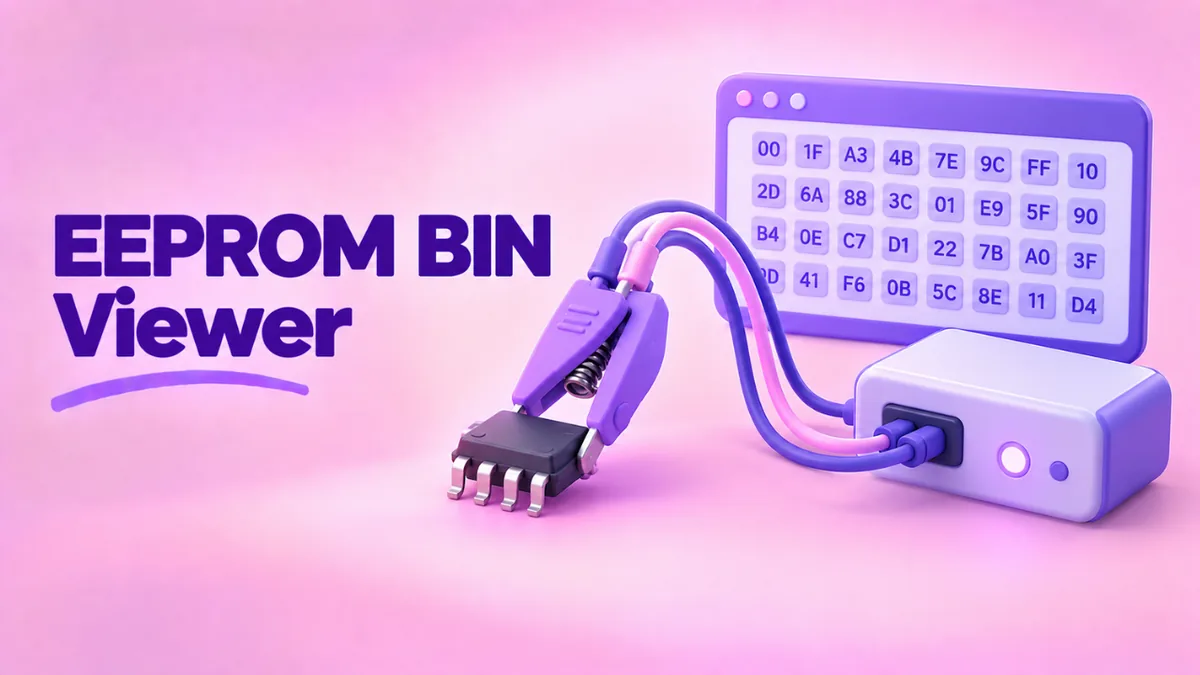
Each row shows 16 bytes. A 256-byte chip fills exactly 16 rows, from offset 00000000 to 000000F0.
What a healthy dump looks like
Every device is different, but healthy dumps share some signs:
- A mix of values. Real data has varied bytes, not the same byte everywhere.
- Some readable text. Many dumps hold a model code or serial number as text.
- Unused areas filled with FF. A fresh or erased EEPROM reads as FF. Unused space at the end is often FF too.
- A matching size. The file is exactly the chip size.
Warning signs of a bad read
- All FF. The chip is blank, the clip is not connected properly or the wrong chip type was selected.
- All 00. Often a connection problem or no power to the chip.
- Repeating blocks. If the first half and second half are identical, the programmer may have used the wrong size. A small chip read as a larger one often repeats.
- Different every time. Read the chip twice and compare the SHA-256 values. If they differ, the connection is unstable. Fix it before writing anything.
That last check is the most important habit in EEPROM work. Two identical reads mean you can trust the data.
Byte order and 16-bit chips
93Cxx chips can be set up to store data in 8-bit or 16-bit words. If a dump is read in 16-bit mode, the bytes in each pair may appear swapped compared to what you expect. For example, text may look like “OMEDL” instead of “MODEL”.
If text looks scrambled in pairs, the byte order is swapped. Most programmer software has an option to swap bytes or choose 8-bit or 16-bit organization. Pick the one that matches how the device uses the chip. Our upcoming guide on byte order explains this in more depth.
Comparing two EEPROM dumps
A common repair method is to compare a faulty board’s dump with a known good dump from the same model. Here is how:
- Open both files in our tool and note their SHA-256. If they match, the data is identical.
- If they differ, export a hex dump of each from the “Convert & save” tab.
- Compare the two text files with a diff tool. On Windows, run
fc /b good.bin bad.binin Command Prompt. On Mac and Linux, runcmp -l good.bin bad.bin. - Look at where the differences are. Differences in serial numbers are normal. Differences in settings or calibration areas may be the fault.
See BIN to HEX for more on hex dumps and comparisons.
Good practice for EEPROM repairs
- Always save the original first. Before writing anything, read the chip and keep that file safe. Name it with the device, board and date.
- Read twice, compare once. Two matching SHA-256 values mean a clean read.
- Use the right chip type in the software. A wrong type gives wrong sizes and broken data.
- Check the voltage. Some chips run at 1.8 V. Using a 3.3 V or 5 V programmer on them without an adapter can damage the chip.
- Verify after writing. Most programmers have a verify step. Use it, then read the chip again and compare with your file.
- Keep unique data. Serial numbers, MAC addresses and key data are unique to each device. Copying a full dump from another unit can cause conflicts.
A note on car electronics
EEPROM work is common in car repair, for example when replacing a dashboard, airbag module or key module. Some of these jobs are legal and routine, like moving data when replacing a faulty part. Changing the mileage on an odometer to mislead a buyer is illegal in many countries. Only change data you are allowed to change, and keep records of what you did and why.
Popular tools that make EEPROM dumps
You will see dumps from many programmers. Low-cost USB programmers with chip clips are popular with hobbyists. Universal programmers with sockets are common in repair shops. Some car diagnostic tools also read EEPROM data through the car’s connector.
All of them save a plain .bin file, so you can open any of them in our viewer. Some also save their own project format, but they nearly always offer “save as BIN” too.
Finding data inside an EEPROM
Want to find a serial number or model code? Use the search in our hex viewer:
- Switch the search mode to Text and type the serial number from the device label.
- If nothing is found, try searching in Hex mode. Some devices store numbers as raw values, not text.
- Try the serial number with the byte order reversed for 16-bit chips.
When you find it, note the offset. Repair forums often talk about data by offset, like “the panel code is at 0x40”.
A real example
Waqas repairs an LED TV that shows the wrong picture size after a power surge. He reads the 24C32 EEPROM on the main board. The file is 4 KB, which matches the chip. He reads it again and the SHA-256 matches, so the read is good.
He opens the dump in our tool next to a good dump from the same TV model. The strings show the same model code in both. Comparing the hex, he spots a small block of different values near offset 0x200, the area where this board keeps panel settings. He writes the good values back, verifies the chip and the TV picture is correct again. He keeps the original faulty dump in case he needs it later.
Related guides
- BIOS BIN files: chip dumps from motherboards.
- Check the firmware version in a BIN: find model and version strings.
- How to view a binary file: hex and text basics.
Frequently asked questions
Can I open an EEPROM .bin file online?
Yes. Our online BIN file viewer shows the hex, text and checksum in your browser. It does not upload the file, so customer data stays private.
Why is my EEPROM dump all FF?
Either the chip is blank or the programmer did not read it. Check the clip, the chip type and the voltage, then read again.
Why does the text look scrambled in pairs?
The chip was read in 16-bit mode and the bytes are swapped. Change the organization or use a byte swap option in your programmer software.
Can I edit an EEPROM dump in the viewer?
Our tool is a viewer, which keeps your original safe. Use your programmer software or a desktop hex editor to make changes, always on a copy.
What is the difference between EEPROM and flash?
Both keep data without power. EEPROMs are small and can change single bytes. Flash chips are larger and erase in blocks. Firmware usually lives in flash, settings often in EEPROM.
Conclusion
An EEPROM BIN file is a small but critical copy of a device’s settings and identity. View it with our free BIN file opener, check the size against the chip, read twice to confirm and compare with a known good dump when fixing faults. Keep the original safe and only change what you are allowed to. For bigger firmware files, see firmware BIN files explained.