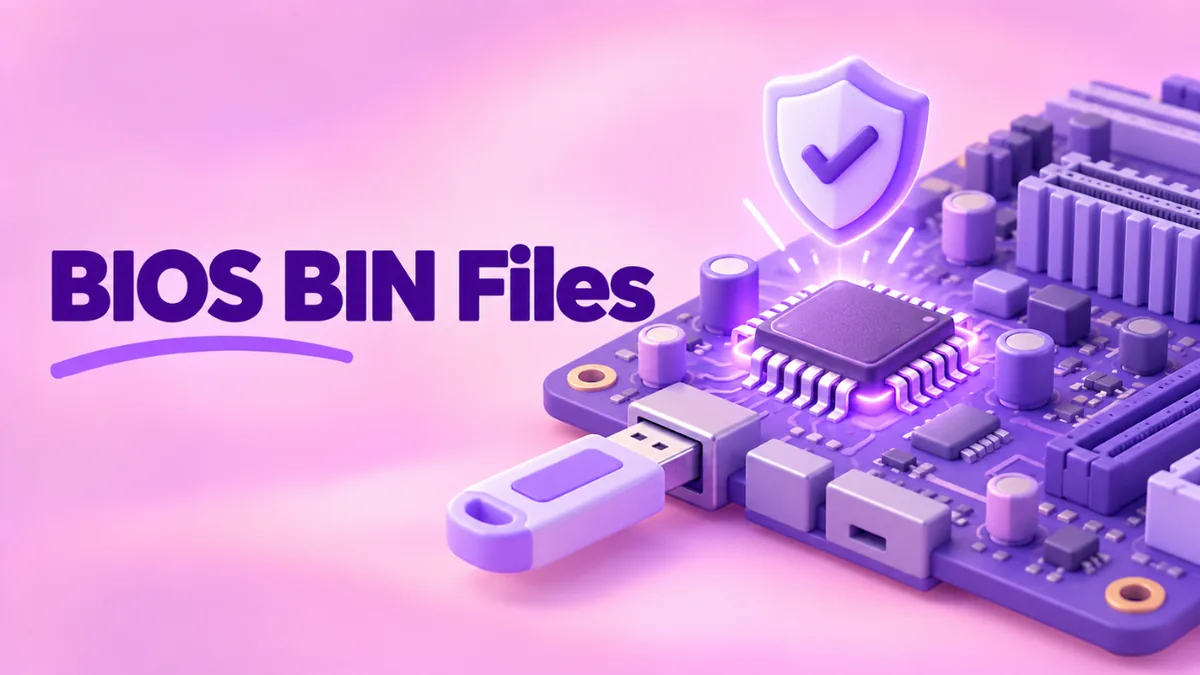
BIOS .BIN Files: What They Are and How to Use Them Safely
Got a .bin file right now?
Open it free in your browser. See the real file type, hex, text and preview in seconds. Nothing is uploaded.
Open your BIN fileYou downloaded a BIOS update for your motherboard or laptop and got a file ending in .bin. Or a repair shop gave you a BIOS dump called bios.bin. What is it, can you open it and how do you use it without breaking your computer?
This guide explains the BIOS .bin file in plain words. You will learn what is inside, how to check you have the right one and how BIOS updates are installed on the main motherboard brands.
What is a BIOS?
The BIOS is the first software that runs when you press the power button. It checks your hardware, sets up the processor and memory, and then hands control to Windows, Linux or macOS. Modern computers use a newer version called UEFI, but most people still call it the BIOS.
The BIOS lives on a small flash memory chip on the motherboard. It is firmware, like the software inside a router or TV. You can read more about firmware in general in firmware BIN files explained.
What is a BIOS .bin file?
A BIOS .bin file is a copy of what should be on that flash chip. There are two kinds you might meet.
1. A BIOS update from the maker
Motherboard and laptop makers release updates to fix bugs, support new processors and close security holes. Depending on the brand, the file may end in .bin, .rom, .cap or a number. Some laptop makers ship updates as programs instead, which you run in Windows.
2. A BIOS dump
Repair technicians read the chip directly with a programmer tool and save the result as a .bin file. This is a dump. It holds the exact contents of that specific board’s chip, which can include its serial number and network address.
What is inside a BIOS file?
Open a BIOS file in our free BIN file opener and you will see several clues. The tool reads it on your device without uploading it.
- Size. BIOS chips come in fixed sizes, so files are often exactly 8, 16 or 32 MB.
- Padding. Big runs of FF bytes are empty space on the chip.
- Text strings. Search for the board model, the brand, “BIOS”, “UEFI” or a date. Most BIOS files show these.
- Entropy. Usually a mix: some compressed parts with high entropy and lots of empty space.
Modern UEFI images are made of many modules, each with its own job, packed into containers called firmware volumes. Specialist UEFI tools can list these modules, but you do not need them to check the basics.
How to check you have the right BIOS file
A wrong BIOS can stop a computer from starting. Take five minutes to check.
- Find your exact board model. On Windows, press Windows+R, type msinfo32 and press Enter. Look at “BaseBoard Product” for desktops, or “System Model” for laptops.
- Check the board revision. Some boards have revisions like 1.0 and 2.0 that need different BIOS files. It is printed on the board itself.
- Find your current BIOS version. In the same msinfo32 window, see “BIOS Version/Date”.
- Download only from the maker’s support page for that exact model.
- Check inside the file. Open it in our tool, go to Text strings and search for your board model. If the model in the file does not match, stop.
- Compare the checksum if the maker publishes one. Our tool shows the SHA-256.
How BIOS updates are installed
Each brand has its own built-in update tool. They all follow a similar pattern: copy the file to a USB stick, restart into the BIOS menu and run the updater.
ASUS
Use EZ Flash in the BIOS menu. Many ASUS boards also have a BIOS FlashBack button that can update from a USB stick even without a processor installed. FlashBack often needs the file renamed to a specific name, which ASUS provides as a small tool or in the manual.
MSI
Use M-Flash in the BIOS menu. Many boards also have a Flash BIOS button on the back panel.
Gigabyte
Use Q-Flash in the BIOS menu. Some boards have a Q-Flash Plus button for updating without a processor.
ASRock
Use Instant Flash in the BIOS menu.
Laptops and brand PCs
Dell, HP, Lenovo and others usually provide BIOS updates as Windows programs or through their support apps. Plug in the charger before you start.
Always follow the exact steps in your board’s manual. Button-based updates in particular often need a specific USB port and file name.
Golden rules for BIOS updates
- Only update if the release notes fix a problem you have, or you need support for new hardware or security fixes.
- Never turn off the computer during the update. A power cut mid-update is the main cause of dead boards.
- Use a small, simple USB stick formatted as FAT32.
- Do not overclock or change settings until the update is finished.
- After the update, load default settings, then set your preferences again.
BIOS dumps and chip programmers
When a BIOS update fails, or a board arrives with a damaged BIOS, repair technicians use a hardware programmer. A common one is a low-cost USB programmer with a clip that attaches to the BIOS chip. It can read the chip into a .bin file and write a new file back.
If you are working with dumps, keep these points in mind:
- Read twice and compare. Read the chip two times and compare the SHA-256 values in our tool. If they match, the read is reliable.
- Keep the original dump. It holds data unique to that board, like the serial number, the network MAC address and sometimes a Windows license key.
- Do not flash a dump from another board unless you know how to move the unique data across. Otherwise you may end up with duplicate MAC addresses or lost activation.
- Check the size. The file size must match the chip size. A 16 MB chip needs a 16 MB file.
Our hex viewer is handy here. Use “Go to offset” to jump to areas mentioned in repair guides, and search for text like the board model or serial number to find where they live.
Can you edit a BIOS file?
Some advanced users mod BIOS files to unlock hidden settings or add support for new drives. It is risky. Modern boards often check signatures and refuse modified files through normal updates. A bad mod can leave the board unable to start, needing a programmer to fix.
For most people, the answer is simple: do not edit BIOS files. Use the official updates and settings menu.
How to read a BIOS file safely
Looking inside is always safe. Here is a quick routine:
- Open the file in our online BIN file viewer.
- Note the size and SHA-256.
- In Text strings, set the minimum length to 8.
- Search for the board model, “BIOS”, “UEFI”, “Version” and the year.
- Scroll the hex view near the start and the end. Many BIOS images have a readable area near the end too.
This tells you the model, the version and often the build date, without installing anything. Learn more search tricks in how to view a binary file.
A real example
Asad wants to install a new processor, but his motherboard needs a BIOS update first. He downloads the BIOS from the maker’s site. It comes as a ZIP with a .bin inside. He opens the .bin in our tool. The strings show his exact board model and a version newer than his current one. The size is exactly 32 MB, matching his board’s chip. He copies the file to a FAT32 USB stick, uses the board’s built-in update tool and waits. After a restart, the new processor works.
Frequently asked questions
How do I open a BIOS .bin file?
You do not open it like a document. You install it through the BIOS update tool. To look inside safely, use our BIN file opener.
Can I install a BIOS file from another board?
No. Use only files made for your exact model and revision. A wrong BIOS can stop the board from starting.
Why is my BIOS file exactly 16 MB?
Because BIOS chips come in fixed sizes. The file fills the whole chip, with empty space marked by FF bytes.
What is the difference between .bin, .rom and .cap BIOS files?
They are all BIOS images. The extension depends on the brand. Some formats like .cap add a signed header that the board checks before updating.
Is updating the BIOS dangerous?
It is safe when you use the right file and keep power stable. The danger comes from wrong files and interrupted updates.
Conclusion
A BIOS .bin file is the startup firmware for a motherboard or laptop. It may be an official update or a dump from the chip. You can check it safely with our free BIN file viewer to confirm the model, version and size. Then install it only with your board’s official tool and never interrupt the update. To learn how to find versions inside any firmware, see how to check the firmware version in a BIN file.