TP-Link config.bin File Explained (Archer AX73 and More)
Got a .bin file right now?
Open it free in your browser. See the real file type, hex, text and preview in seconds. Nothing is uploaded.
Open your BIN fileIf you own a TP-Link router, you may have a file called config.bin on your computer. Maybe you made a backup before a firmware update. Maybe you found it in your downloads and wondered what it is. Owners of popular models like the Archer AX73, Archer C6 and Archer C80 search for this a lot.
This guide explains what the TP-Link config.bin file is, why it looks like gibberish, how to restore it and what to do if you need a setting from it. We also cover how to tell it apart from TP-Link firmware files, which also end in .bin.
What is TP-Link config.bin?
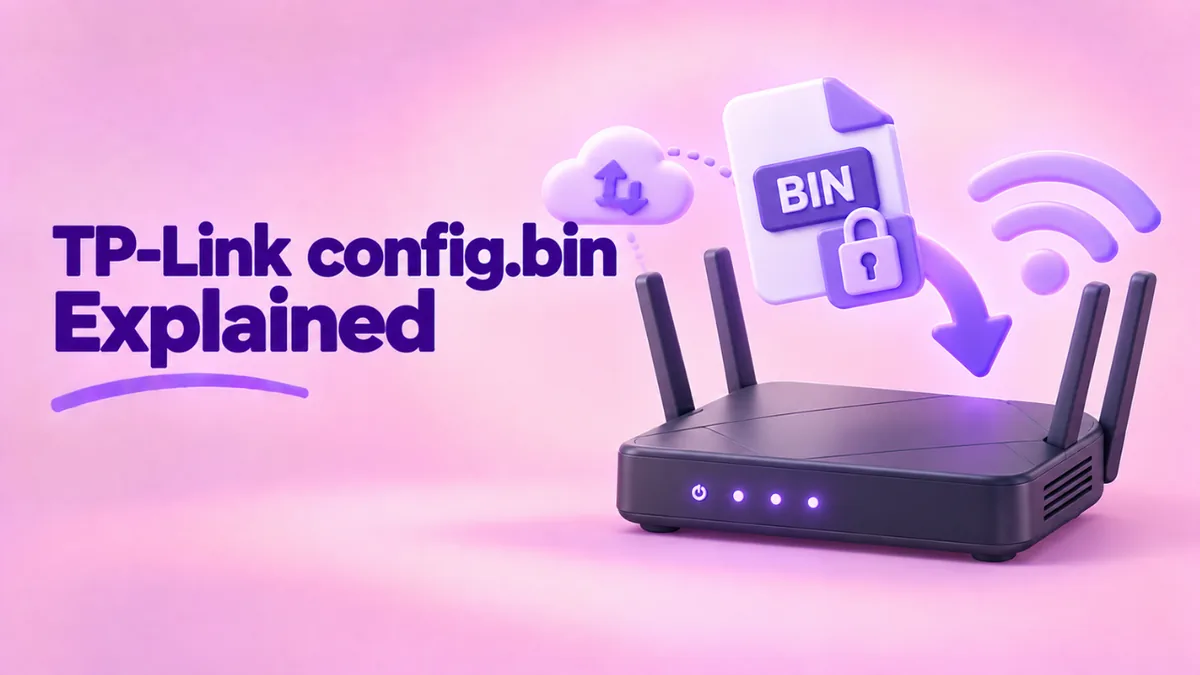
It is the backup file TP-Link routers create when you use the “Backup” option. It stores your router’s full configuration:
- Wi-Fi network names and passwords for each band.
- Your internet connection type and login details.
- The admin password for the router.
- Port forwarding, DHCP reservations, QoS and parental controls.
- Guest network, OneMesh and VPN settings, if you use them.
The file is meant to be loaded back into the same router, so you do not have to set everything up again after a reset or update.
How to make a backup on a TP-Link router
On most current TP-Link routers, including the Archer series, the steps are:
- Connect to your router’s Wi-Fi or plug in with a cable.
- Open a browser and go to tplinkwifi.net, or the router’s IP address, often 192.168.0.1.
- Sign in with your admin password.
- Go to Advanced, then System, then Backup & Restore. On some older models, it is under System Tools.
- Click Backup. The browser downloads config.bin.
Rename it to something clear, like archer-ax73-backup-2026-10.bin, and store it somewhere safe. The name does not affect the restore.
Why config.bin looks like random data
Drop the file into our free BIN file opener and look at the result. You will likely see “Unknown binary data” and an entropy close to 8 out of 8. The Text strings tab will show very little.
That is expected. TP-Link protects these backups so they cannot be read or edited easily. The settings are compressed and encrypted. Since the file contains your passwords, this is a good thing. If someone steals the file, they cannot simply open it and read your Wi-Fi password.
Our tool reads the file on your device only. It never uploads it. That matters, because a router backup is one of the most sensitive files you own.
How to restore config.bin on a TP-Link router
- Sign in to the router at tplinkwifi.net or its IP address.
- Go to Advanced, then System, then Backup & Restore.
- Under Restore, click Browse and pick your config.bin.
- Click Restore and confirm.
- Wait for the router to reboot. This takes a few minutes. Do not turn it off.
- Reconnect. If your restored Wi-Fi name or password differs from the current one, use the restored details.
If you use the TP-Link Tether or Deco app, some models handle backups through the app or your TP-Link cloud account instead. Check the app’s settings menu.
Why a restore can fail
Different model
A backup from an Archer C6 will not work on an Archer AX73. Each model stores settings differently.
Different hardware version
TP-Link models have hardware versions, like V1, V2 or V3, printed on the label. A backup from one hardware version may not load on another, even with the same model name.
Much older firmware
After a big firmware jump, the router may reject older backups. If so, set up the router by hand.
A changed or damaged file
The router checks the file. Renaming it is fine, but any change to the contents makes it invalid. A broken download also fails. Check the size: a few bytes or a file that previews as a web page in our tool means the backup did not save properly.
Can you read your Wi-Fi password from config.bin?
This is the big question. The honest answer: on current TP-Link models, not easily, and you usually do not need to.
Some older TP-Link models used weaker protection on their backups, and people built community tools that could decode them. Newer Archer models use stronger protection. Those older tools do not work on them.
Easier ways to find your password:
- Log in to the router and open Wireless settings. The password is shown there.
- Open the Tether app. It shows the password under Wireless.
- Check the label on the bottom of the router if you never changed the default.
- Look on a device that is already connected. Windows, macOS, Android and iOS can all show saved Wi-Fi passwords.
Be very careful with websites that offer to “decrypt” router backups. Uploading your config.bin gives a stranger your Wi-Fi password, your admin password and possibly your internet login.
config.bin vs TP-Link firmware .bin
TP-Link firmware updates also come as .bin files, usually inside a ZIP from TP-Link’s support site. They are very different from a config backup.
- Firmware is the router’s software. It is usually several megabytes. It goes into the Firmware Upgrade page.
- Config backup is your settings. It is usually small, often just kilobytes. It goes into the Backup & Restore page.
You can tell them apart with our tool. Firmware files often have readable text strings, like the model name, “TP-LINK” and version numbers. Backups show almost no readable text. Size is another quick clue.
When you download firmware, always match three things: the exact model, the hardware version on the label and the region. Installing the wrong firmware can leave your router unable to start. Our upcoming guides cover firmware files in more depth. For now, see what a BIN file is.
Best practices for TP-Link backups
- Make a backup right after you finish setting up the router.
- Make another before every firmware update.
- Name each backup with the model, hardware version and date.
- Keep backups in an encrypted folder or a password manager that stores files.
- Also write down your key settings, like Wi-Fi names and port forwards, in case the backup cannot be restored on a new router.
- Never upload a backup to a website that sends files to a server.
What to do when you replace your TP-Link router
A new model cannot use the old backup. Here is a smooth way to move:
- Open the old router’s admin page and write down your settings, or take screenshots.
- Set up the new router with the same Wi-Fi name and password. Most devices then reconnect on their own.
- Recreate port forwards, DHCP reservations and parental controls by hand.
- Make a fresh backup on the new router.
Using the same Wi-Fi name and password saves you from reconnecting every phone, TV and smart plug in the house.
A real example
Bilal has an Archer AX73. A firmware update resets everything, and his smart home devices stop connecting. He has a config.bin from last month. He opens it in our BIN file opener to make sure it is the backup and not the firmware. It is 40 KB with high entropy and almost no text, a typical TP-Link backup. He signs in at tplinkwifi.net, goes to Backup & Restore and restores it. After the reboot, his Wi-Fi name, password and port forwards are back, and every device reconnects.
Related guides
- How to view a binary file: look inside any backup safely.
- Open BIN files on Windows 11: every BIN type on a PC.
- How to read a binary file: understand what the bytes mean.
Frequently asked questions
How do I open a TP-Link config.bin file?
You restore it through the router’s Backup & Restore page. It is not meant to be opened in other apps. You can check it safely in our online bin file viewer without uploading it.
Can I restore an Archer C6 backup on an Archer AX73?
No. Backups only work on the same model and usually the same hardware version.
Is my Wi-Fi password in config.bin?
Yes, but it is protected. Find it in the router’s admin page or the Tether app instead.
Why is my TP-Link backup so small?
Settings take little space, especially when compressed. A few kilobytes is normal.
Can I edit the backup to change a setting?
No. The router rejects changed files. Change settings in the admin page.
Where is the TP-Link firmware .bin file from?
From TP-Link’s official support site for your exact model and hardware version. Do not use firmware from other sites.
Conclusion
The TP-Link config.bin is a protected backup of your router’s settings. It is designed to be restored to the same model, not read. Use it before and after firmware updates, keep it private and never upload it to unknown sites. To check any .bin file safely and see whether it is a backup or firmware, use our free BIN file opener. For more on router backups from any brand, read our guide to router config.bin files.