Router config.bin: What It Is and How to Open It
Got a .bin file right now?
Open it free in your browser. See the real file type, hex, text and preview in seconds. Nothing is uploaded.
Open your BIN fileYou clicked “Backup” in your router’s settings page and got a file called config.bin, backup.bin or something similar. Now you want to open it. Maybe to check a setting, find an old Wi-Fi password or move settings to a new router.
This guide explains what a router config.bin file is, why you usually cannot read it like a normal file and what you can do with it instead. It also covers how to keep these backups safe, because they hold some of your most sensitive network details.
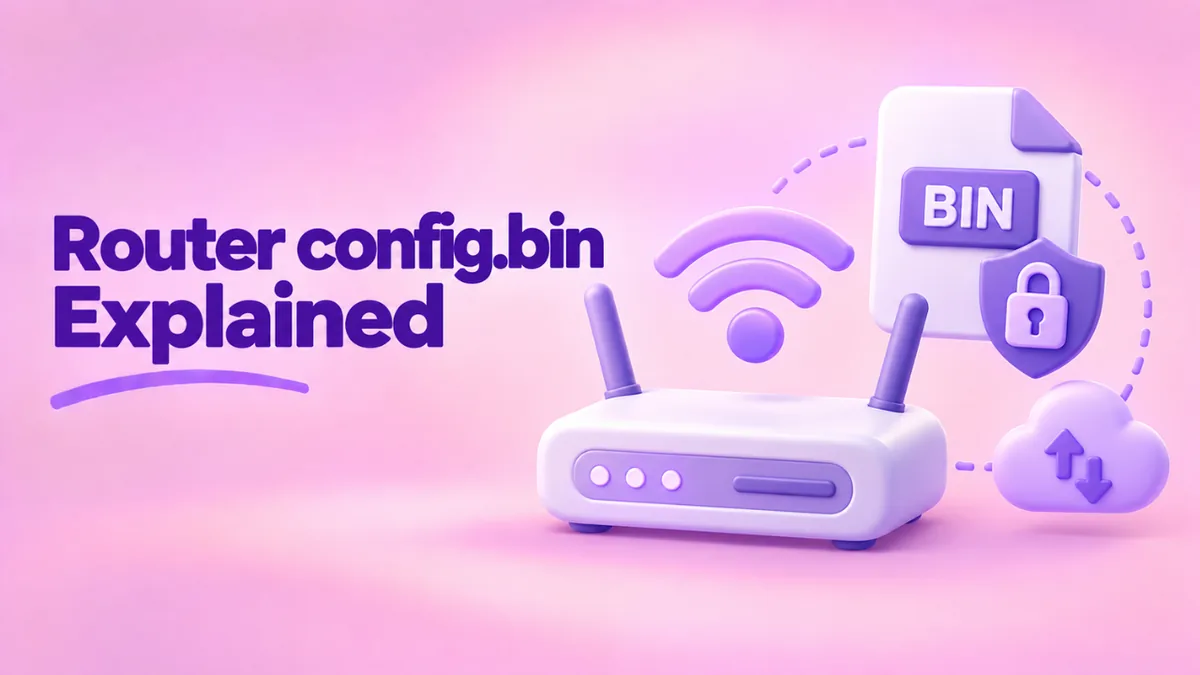
What is a router config.bin file?
Most home and office routers let you save their settings to a file. This is called a configuration backup. The file holds everything you set up:
- Your Wi-Fi network names and passwords.
- Your internet connection details, such as PPPoE username and password.
- The router’s admin password.
- Port forwarding rules, DHCP reservations and parental controls.
- Guest network, VPN and firewall settings.
Router makers often save this backup with a .bin extension. The name says “binary”, but it tells you nothing else. Each brand, and often each model, uses its own private format.
Why you cannot just open it
Many people expect the backup to be a readable text file. Usually it is not, for three reasons.
1. It is compressed
Routers have little storage, so the settings are often packed with a compression method like zlib or gzip. Compressed data looks like random noise.
2. It is encrypted
Because the file holds passwords, many makers encrypt it. Only the router, which knows the key, can read it back. This protects you if someone finds the file.
3. It uses a private layout
Even when a file is not encrypted, the settings are stored in a layout only that router’s firmware understands.
You can see this for yourself. Drop your config.bin into our free BIN file opener. Look at the entropy value. A score near 8 out of 8 means the data is compressed or encrypted. A lower score with readable strings means it is stored more openly.
What you can learn from the file
Even if the settings are locked, a quick look tells you useful things. Open it in the BIN file opener and check:
- File type. Sometimes the tool finds a GZIP or ZIP signature. That means the backup is only compressed, not encrypted.
- Text strings. Some backups include a plain header with the router model, hardware version or firmware version. This tells you which router it came from.
- Size. Backups are usually small, from a few kilobytes to a few hundred. A config.bin of several megabytes is probably firmware, not a backup.
- SHA-256. Note this down. It lets you check later that the backup has not changed or been swapped.
Our tool reads everything on your own device. Nothing is uploaded, which matters a lot here, because this file contains your passwords.
How to use a router backup the right way
A router backup is meant to be restored, not read. Here is how to restore it on most routers:
- Connect to the router by Wi-Fi or cable.
- Open its admin page in a browser. Common addresses are 192.168.0.1, 192.168.1.1 or the address printed on the router’s label.
- Sign in with the admin password.
- Find the backup section. It is usually under System Tools, Administration, Maintenance or Management.
- Choose “Restore” and select your config.bin.
- Wait for the router to reboot. Do not unplug it during this time.
After the restart, all your old settings are back.
Can you restore it to a different router?
Usually only to the same model, and often only to the same hardware version. Some routers also refuse backups from much older firmware versions. If you move to a new router model, you will need to enter settings by hand.
That is a good reason to keep a written list of your key settings, like Wi-Fi names, passwords and port forwards, in a password manager. It is often faster than fighting with a backup file.
What about finding an old Wi-Fi password?
This is the most common reason people want to read config.bin. Before you try anything with the file, try these easier options:
- Check a connected device. Windows, Mac, Android and iPhone can all show the saved password for the current Wi-Fi network in their settings.
- Check the router label. If you never changed it, the default password is printed on the router.
- Log in to the router. Most admin pages show the Wi-Fi password in the wireless settings.
- Use the maker’s app. Many routers have a phone app that shows the password.
For some older router models, people in online communities have written tools that decrypt backups. These only work for specific models and firmware, and they need care. Only use them on your own router’s backup, and never upload a config file to a random website. It contains everything someone would need to get into your network.
Do not confuse config.bin with firmware
Routers use .bin files for two very different things:
- Configuration backup. Your settings. Small file. Restored through the backup or restore page.
- Firmware. The router’s software. Larger file, often several megabytes. Installed through the firmware upgrade page.
Mixing them up can cause trouble. Uploading a config backup to the firmware page will normally be rejected, but uploading the wrong firmware can damage the router. Always check which file you have first. Our tool helps: firmware files often show as “U-Boot firmware image” and have readable model and version strings, while backups are usually small and look random.
How to keep router backups safe
- Store them in an encrypted folder or a password manager that supports files.
- Do not email them or post them on forums.
- Do not upload them to online tools that send files to a server. Our online bin file viewer is safe because it reads files locally.
- Delete old backups you no longer need.
- Make a new backup after every big settings change.
When to make a backup
- Before a firmware update. If the update resets settings, you can restore them.
- Before a factory reset.
- After you finish a big setup, like port forwarding for a game server or cameras.
- Before letting someone else work on your network.
A real example
Kamran updates his router firmware and all his settings are wiped. Luckily he made a backup last month. He opens the file in our tool first and sees a short header with his router’s model name. That confirms it is the right file. He logs in to the router, uses Restore and picks the file. After a two-minute reboot, his Wi-Fi, port forwards and parental controls are all back.
Signs your backup file is damaged
A backup is only useful if it works when you need it. Here are signs something is wrong:
- The size is zero or a few bytes. The download failed. Make a new backup.
- The tool says “Plain text” and shows HTML. You saved the router’s web page instead of the backup. This happens if your login expired during the download.
- The SHA-256 changed. If you noted the fingerprint when you made the backup and it is different now, the file was altered or corrupted.
- The router says “invalid file”. Check the model and firmware version match. If they do, the file may be damaged.
The best protection is simple. Make a fresh backup after every big change, keep two copies in different places and test a restore once in a while if your router lets you.
Backups on mesh and ISP routers
Mesh Wi-Fi systems and many internet provider routers manage settings through a phone app or the cloud. They may not offer a config.bin download at all. Instead, your settings live in your account. In that case, sign in to the app to restore or move settings, and ask your provider for help if the router is theirs.
Related guides
- How to view a binary file: see any file in hex and text.
- BIN file extractor: what you can and cannot pull out of a .bin.
- Downloaded file saved as .bin: when a backup download goes wrong.
Frequently asked questions
Can I open config.bin in Notepad?
You can, but you will see random symbols. The file is compressed or encrypted. Check it with our BIN file opener to see what is inside.
Is it safe to share my router backup?
No. It can contain your Wi-Fi password, admin password and internet login. Keep it private.
Why does my router reject my backup?
The backup may be from a different model or hardware version, or from much older firmware. Some routers also reject files that were renamed or changed.
Can I edit settings in the file and restore it?
Not safely on most routers. Many check the file with a checksum and reject any change. Change settings in the admin page instead.
What is the difference between config.bin and a firmware .bin?
Config is your settings. Firmware is the router’s software. Read what a BIN file is to learn about other types too.
Conclusion
A router config.bin is a private backup of your settings. It is usually compressed or encrypted, so it is meant to be restored, not read. Use our free BIN file viewer to check which router it came from without uploading it. Then restore it through the router’s admin page, and keep it somewhere safe. To learn how to look inside binary files in general, see how to read a binary file.